Supplementary Information
Is it possible to add a (anonymised) screenshot of the request details in Invantive Monitoring as described in Meer inzicht met nieuwe Online Monitoring?
You can find the details by clicking on the download request which represents the subject of this topic.
The download request usually contains a SQL statement where the table name is visible.
Please ensure at least the following data is visible from both columns:
- the title bar with the request ID,
- the status code, network size, path and timestamps in the left column,
- the error code and error message all the way at the bottom in the left column,
- the entire right column including the SQL statement, table name and parameter values.
For example:
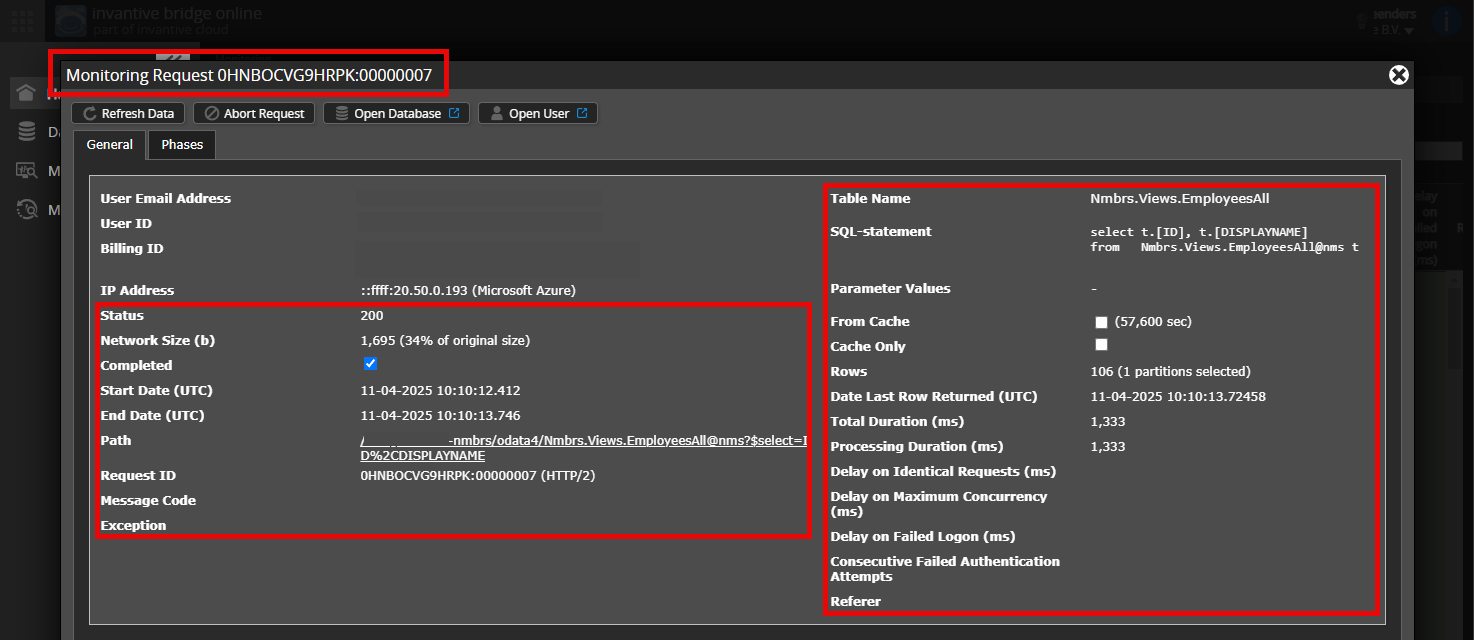
Check Correct Request and Details
Make sure you first select the request to display the details. Only one request should be visible in the screenshot.
Error Message and Tips via Email
Additionally, the Invantive Cloud user who encountered the error message will often receive an email with the error message and tips if there is an error message in Claude or another AI tool.
The advice is to check the spam folder of the involved user for such emails sent from support@invantive.com.