In questo articolo imparerai come creare una piccola applicazione online con Invantive Cloud per scaricare massicciamente dati da una o più amministrazioni Exact Online come file Excel.
Download di Excel ed Exact Online
Con diversi prodotti di Invantive è possibile creare file Excel con dati provenienti (ad esempio) da Exact Online:
- Invantive Control for Excel: vedi ad esempio De meest populaire Exact Online Excel add-in formules
- Get My Report: Get My Exact Online Report
- Invantive SQL e Invantive Script: vedi ad esempio Export all Outstanding Items (AP and AR) from Exact Online Companies
Nessuno di questi strumenti ha un limite effettivo al numero di righe che possono essere incluse, a parte i limiti di Excel stesso. E gli utenti aziendali sono contenti della struttura ordinata con colonne e righe. Inoltre, i prodotti Invantive creano anche un intervallo con nome (“named range”) in modo che i dati possano essere facilmente inseriti in una tabella pivot.
Ciò nonostante, c’erano alcune limitazioni. Gli utenti Mac, ad esempio, dovevano limitarsi a Get My Report o al tecnico Invantive Data Hub. E gli utenti Windows potevano ottenere rapidamente un’analisi su tablet solo tramite Get My Report.
Esportazione Online di Exact Online con Invantive Cloud
Con app personalizzate su Invantive Cloud, ora è possibile convertire in modo rapido e affidabile grandi quantità di dati da Exact Online o altre piattaforme in comodi file Excel.
Il risultato finale, ad esempio, si presenta così:
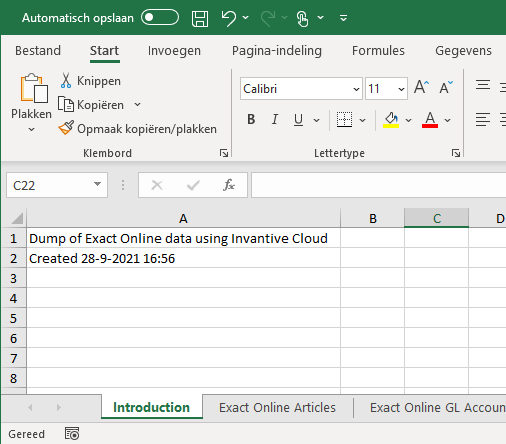
In questo esempio tratteremo:
- la registrazione di un database Exact Online e di un’app,
- la creazione di un file Excel in un’app,
- l’aggiunta di fogli di lavoro con un nome a scelta,
- la compilazione di celle specifiche con un valore come “Dump of Exact Online…”,
- il riempimento dei fogli di lavoro con una query SQL.
Stai cercando un esempio per un file CSV, oppure l’esportazione in formato JSON o XML, o una soluzione con Power Pivot o Power Query? I seguenti articoli ti aiuteranno:
- JSON genereren vanuit Invantive UniversalSQL
- Laad Exact Online in Qlik Sense en Tableau
- Ophalen in CSV van RIVM Covid-19 Gegevens
- Export all Outstanding Items (AP and AR) from Exact Online Companies
- Exporteer Exact Online Stukslijsten naar Excel
- Binnenhalen artikelvoorraden in Excel Power Query
- Verbind Power Query met Exact Online
Preparazioni
Sono necessarie le seguenti preparazioni:
- Un codice di accesso su Invantive Cloud.
- Un codice di accesso su Exact Online con una o più amministrazioni.
Definire il Database Exact Online
Il primo passo è definire un database Exact Online. Questo può essere fatto facilmente seguendo questa guida passo passo:
Questo database Exact Online può essere utilizzato per Power BI, Power Query o Azure Data Factory, ma altrettanto facilmente, ad esempio, per Access OData o come sorgente per un’applicazione Invantive Cloud.
Definire l’Applicazione Cloud
Il passo successivo è definire un’app su Invantive Cloud. Segui questi passaggi:
- Seleziona ‘Applicazioni’ nel menu:
- Scegli ‘Nuovo’.
- Compila i campi come segue:
- Scegli ‘Moduli’.
- Scegli ‘Nuovo’.
- Compila i campi come segue:


Creare e Riempire il File Excel
Questo modulo conterrà il codice per creare il file Excel.
Il codice completo si trova alla fine di questo articolo.
Vuoi procedere velocemente?
- Incolla il codice nel modulo nel campo “Codice sorgente”.
- Scegli “My First App” nel percorso di navigazione in alto.
- Scegli “Esegui”.
- Scegli il tuo database Exact Online.
- Scegli “Esegui”:
- Scegli il modulo:
- Il file Excel verrà scaricato.


Per download di grandi dimensioni che superano i 3 minuti, è necessario avviare il modulo tramite Invantive App Online. Con Invantive App Online è anche possibile eseguire il modulo con validazione dell’indirizzo IP e nome utente/password, oppure posizionare il modulo dietro un CDN.
Ma cosa fa il codice? Il codice è scritto nel linguaggio Invantive PSQL; si tratta dell’estensione procedurale di Invantive SQL.
Declare
Il blocco declare definisce tre variabili:
declare
  l_workbook  excel_workbook;
  l_worksheet excel_worksheet;
  l_binary    blob;
Di queste variabili, due hanno un tipo di dato utilizzabile solo in PSQL:
excel_workbookexcel_worksheet
Un excel_workbook contiene un’intera cartella di lavoro Excel. Ogni cartella di lavoro è composta da uno o più fogli di lavoro, rappresentati da excel_worksheet.
Il tipo di dato blob viene utilizzato per memorizzare il file Excel composito (binario).
Cartella di Lavoro Excel e Pagina Iniziale
Il primo passo è definire una cartella di lavoro Excel. Questo avviene tramite chiamate a un cosiddetto “package”: un raggruppamento di funzioni. Puoi leggere di più a riguardo su A short overview of Invantive PSQL packages.
  --
  -- Create an Excel workbook.
  --
  l_workbook := excel.new();
La cartella di lavoro è ancora vuota. Viene aggiunto un foglio di lavoro con il titolo “Introduction” chiamando la funzione add_worksheet nel package excel:
  --
  -- Add a worksheet with a title.
  --
  l_worksheet := excel.add_worksheet
  ( l_workbook
  , 'Introduction'
  );
Successivamente, due celle vengono riempite con alcune informazioni tramite la funzione set_cell_contents:
  excel.set_cell_contents(l_worksheet, 'A1', 'Dump of Exact Online data using Invantive Cloud');
  excel.set_cell_contents(l_worksheet, 'A2', 'Created ' || to_char(sysdate));
Riempire il Foglio di Lavoro Excel con una Query
Ovviamente i dati di una query SQL sul database Exact Online possono essere inseriti uno per uno con set_cell_contents all’interno di un ciclo for r in (query) loop...end loop in un foglio di lavoro Excel.
Ma più veloce e semplice è l’uso della funzione fill_using_query, che riempie e formatta un foglio di lavoro in un colpo solo con i risultati di una query Invantive SQL.
Esistono diversi modi per ottenere i dati da un’amministrazione Exact Online in Excel. Il primo esempio utilizza una tabella temporanea, riempita con una query:
  --
  -- Add a worksheet for Exact Online articles.
  --
  l_worksheet := excel.add_worksheet
  ( l_workbook
  , 'Exact Online Articles'
  );
  --
  -- Create a list of articles consisting of code, description and EAN.
  --
  create or replace table itm@inmemorystorage
  as
  select itm.code
  ,      itm.description
  ,      itm.barcode
  from   ItemsIncremental@eol itm
  order
  by     itm.code
  ;
  --
  -- Place the items in the Excel worksheet.
  --
  excel.fill_using_query(l_worksheet, 'select * from itm@inmemorystorage');
Questo approccio ha il vantaggio che la creazione e il riempimento della tabella temporanea possono essere isolati in un modulo separato o in una funzione PSQL. È anche possibile passare direttamente una query Exact Online completa a fill_using_query, come in questo caso con i conti del libro mastro:
  --
  -- Add a worksheet for Exact Online General Ledger Accounts.
  --
  l_worksheet := excel.add_worksheet
  ( l_workbook
  , 'Exact Online GL Accounts'
  );
  --
  -- Place the General Ledger accounts in the Excel worksheet.
  --
  -- Instead of using a temporary table, this approach uses a direct query to fill
  -- the Excel worksheet.
  --
  excel.fill_using_query
  ( l_worksheet
  , 'select gat.code, gat.description'
    || ' from GLAccountsIncremental@eol gat'
    || ' order by gat.code'
  );
Conversione in File XLSX
La variabile l_workbook contiene ora tre fogli di lavoro. Il codice seguente li converte in un file XLSX per Excel tramite una chiamata a export_to_xlsx. Successivamente, il contenuto binario viene restituito al browser tramite il package cloud_http:
  --
  -- Retrieve the resulting XLSX-file.
  --
  l_binary := excel.export_to_xlsx(l_workbook);
  --
  -- Return the XLSX file to the user.
  --
  cloud_http.set_response_body_binary(l_binary);
  cloud_http.set_response_content_type('application/vnd.openxmlformats-officedocument.spreadsheetml.sheet');
  cloud_http.set_response_header_value('Content-Disposition', 'attachment; filename="items.xlsx"');
end;
Codice PSQL Completo dell’Exact Online Exporter verso Excel
declare
  l_workbook  excel_workbook;
  l_worksheet excel_worksheet;
  l_binary    blob;
begin
  --
  -- Create an Excel workbook.
  --
  l_workbook := excel.new();
  --
  -- Add a worksheet with a title.
  --
  l_worksheet := excel.add_worksheet
  ( l_workbook
  , 'Introduction'
  );
  excel.set_cell_contents(l_worksheet, 'A1', 'Dump of Exact Online data using Invantive Cloud');
  excel.set_cell_contents(l_worksheet, 'A2', 'Created ' || to_char(sysdate));
  --
  -- Add a worksheet for Exact Online articles.
  --
  l_worksheet := excel.add_worksheet
  ( l_workbook
  , 'Exact Online Articles'
  );
  --
  -- Create a list of articles consisting of code, description and EAN.
  --
  create or replace table itm@inmemorystorage
  as
  select itm.code
  ,      itm.description
  ,      itm.barcode
  from   ItemsIncremental@eol itm
  order
  by     itm.code
  ;
  --
  -- Place the items in the Excel worksheet.
  --
  excel.fill_using_query(l_worksheet, 'select * from itm@inmemorystorage');
  --
  -- Add a worksheet for Exact Online General Ledger Accounts.
  --
  l_worksheet := excel.add_worksheet
  ( l_workbook
  , 'Exact Online GL Accounts'
  );
  --
  -- Place the General Ledger accounts in the Excel worksheet.
  --
  -- Instead of using a temporary table, this approach uses a direct query to fill
  -- the Excel worksheet.
  --
  excel.fill_using_query
  ( l_worksheet
  , 'select gat.code, gat.description'
    || ' from GLAccountsIncremental@eol gat'
    || ' order by gat.code'
  );
  --
  -- Retrieve the resulting XLSX-file.
  --
  l_binary := excel.export_to_xlsx(l_workbook);
  --
  -- Return the XLSX file to the user.
  --
  cloud_http.set_response_body_binary(l_binary);
  cloud_http.set_response_content_type('application/vnd.openxmlformats-officedocument.spreadsheetml.sheet');
  cloud_http.set_response_header_value('Content-Disposition', 'attachment; filename="items.xlsx"');
end;