Go to English version of this article
It often happens that organisations want multiple people to make use of their Invantive Cloud environment. This topic explains how users can be managed and what problems you might encounter, along with their solutions.
Invantive Cloud has two characteristics that make it necessary to work carefully when managing user accounts:
- Strict separation between organisations
- One organisation = one environment
For temporary access by external parties such as consultants, it is not necessary to add users. Temporary access can be granted via delegation, as described at Toegang via delegatie op Invantive Cloud voor consultants.
Adding Users
The recommended route for adding users is via Invantive Cloud itself.
Follow these steps to add a user:
-
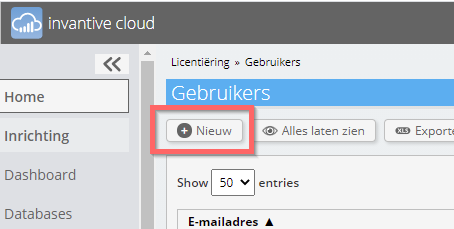
Go to the Users screen.
-
Select the “New” button:
-
Fill in the fields:
-
The email address must be a business email address; hotmail, gmail, etc. are not possible.
-
Tick the “Super user” box if the new user should also be able to create users or, for example, provide delegations.
-
Tick the “Service account” box if the new user will only be used to retrieve data via Power BI.
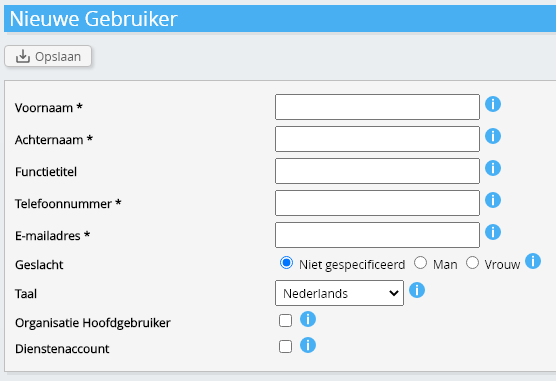
A super user can manage the environment and, like a regular user account, is tied to a specific person.
A service account has virtually no rights within Invantive Cloud itself other than accessing data in databases. A service account is, in principle, not linked to a specific person, but is used by another automated service such as Microsoft Azure Data Factory.
At present (December 2021), the user only receives an email requesting them to sign up after several days. Therefore, send a request yourself to the user to sign up with exactly the same email address.
The new user must sign themselves up via “Sign up” using the specified email address. The new user will then automatically end up in the environment.
Wrong or No Environment and Separate Sign-ups
Users end up in their own (temporary) environment if they sign up themselves with a different email address than the one registered by the super user. Common discrepancies include:
- ‘jan.janssen@…’ instead of ‘jan@…’
- ‘…@…com’ instead of ‘…@…nl’
Also, if users sign up themselves without consulting the super users, they end up in their own environment.
User accounts with temporary environments are updated at least weekly. They are disconnected from their temporary environment if they can be traced back to an organisation that already has its own environment. The temporary environment is later cleaned up automatically. The new user can still log in to Invantive Cloud, but cannot perform any further actions. On Invantive Bridge Online, the error message itgenuuy204 is displayed. The message itgenuuy204 may also appear briefly while the subscription is being configured; therefore, always try again after 15 minutes.
A disconnected user can be recognised by the fact that, after logging in, the first question is whether the user wants to link up with an organisation.
At present, it is not possible for the super user and/or the user themselves to link email addresses that were not registered beforehand to the organisation’s own environment after sign-up. To have this email address linked anyway, it is necessary to follow the “User Relocation Request” procedure. This procedure can take up to 10 days.
User Relocation Request
A relocation request for a user can be submitted if a user account has been created in its own environment. After successful completion of the relocation request, the user account is transferred to the environment of an organisation.
A relocation request can be requested by sending an email to usermanagement@invantive.com containing the name and email address of the user and the name of the organisation of the environment.
The requester will receive a ticket for this.
Invantive User Management will make an outgoing call to the licence coordinator at a registered phone number to authorise the relocation. The request will be cancelled if the licence coordinator cannot be reached within a maximum of three attempts. It is not possible to authorise another person to approve the relocation request.
After authorisation, the user account is relocated. It takes approximately one hour until the transfer of the user account to another organisation has been processed in all systems. If the user logs out and logs back in after at least one hour, they will end up in the requested environment.
Deleting a User
Users cannot be deleted. However, users can be disconnected, which means they will no longer have access to their current organisation. Upon disconnection, delegations remain in place; the granting party will need to revoke the delegation themselves if they wish to do so.
To have a user disconnected, a main user must submit a request to do so via email to usermanagement@invantive.com or via chat.
Restricting Access per Database or Application
It is not possible to differentiate the access of an Invantive Cloud user beyond the separation between the three roles. It is therefore also not possible to restrict access to specific databases or applications.
Contact your account manager to discuss possible alternative subscription forms.