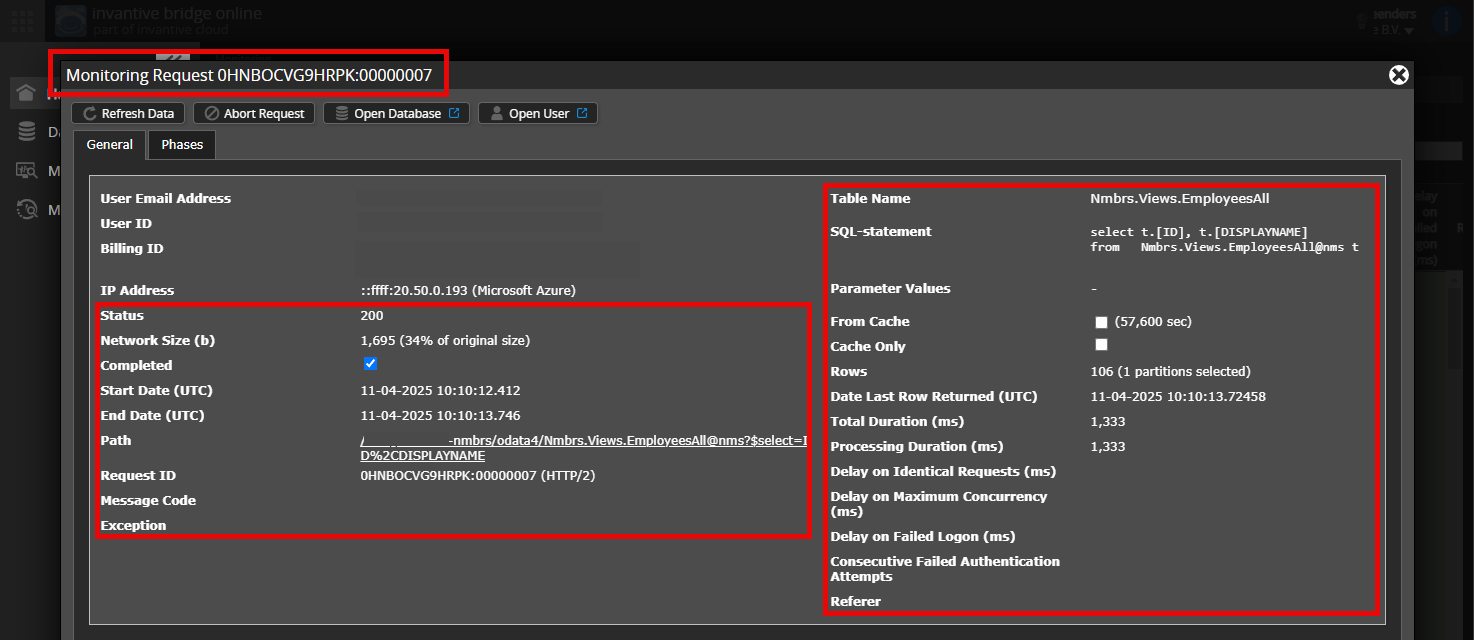
I’ve recently started using ExactOnlineREST.Incremental.TransactionLinesIncremental@eol via Invantive Bridge Online (OData4) in Excel/Power BI. My expectation was that after the initial full load, each refresh would only retrieve and process the delta: changed and deleted rows since the last time. However, what I see in the logging deviates from this. I’m wondering if this is normal behaviour or if something is wrong.
Environment
- Invantive Bridge Online 26.0.286
- Administration with approximately 170,000 rows in the incremental table
- HTTP disk cache 4 hours, Bridge response cache 15 minutes
What I see in IncrementalLoadEventLogEntries
- After the delta, almost every refresh is followed by a reset based on the row count: “Full reload of incremental cache … since the current cache row count … deviates too much from the calculated allowed minimum row count …”. Then follows “Reconstructing. Do not reuse old data. Full reload…”.
- With each refresh, there is "Timestamp moved from to " with empty values, and “No need to update incremental results since there was no previous version”.
- Occasionally: “Can’t find all data files for most recent download … Expecting 2 data files, found 0”.
What I see in the Session I/Os
- The delta itself seems to work fine:
sync/Financial/TransactionLines?$filter=Timestamp gt …Lwith only changed rows. - However, about 170 pages of the full table follow. As long as the disk cache is valid, they are retrieved from the cache, but a refresh still takes 60 to 80 seconds.
- The Deleted API is requested with each refresh from
Timestamp gt 0Landgt 1L, each 4 pages. I expected these to also start from the last seen timestamp. - Consecutive refreshes start with the same
Timestamp gt …Lvalue. So, the timestamp doesn’t seem to move after a delta, causing the delta to get larger each time. - When the disk cache has expired, after the delta, the entire incremental table is retrieved from Exact again (approximately 220 actual calls, over 3 to 8 minutes for just this table).
What stands out to me
Before the delta, the stored copy matches exactly with $count. After processing over 3,000 deleted IDs from the Deleted API, there are about 3,000 rows fewer. It seems that IDs reported as deleted still exist in Exact, and this causes the row count check to trigger a full reload each time. But maybe I’m interpreting this incorrectly.
My questions
- Is it normal that after each delta the complete table is reconstructed?
- Is it normal that the Deleted API is always read from timestamp 0 and that the last seen timestamp doesn’t shift?
- Is my suspicion about the deleted IDs correct, or is there another explanation for the row count discrepancy?
- Could this relate to what was mentioned in this topic about release 26.0 concerning incremental files?
If this is not the expected behaviour: how can I fix it so that only the delta is processed?
I can provide exports of the event log and the Session I/Os upon request.