In this article you will learn how to use Invantive Cloud to create a small online application for downloading large volumes of data from one or more Exact Online administrations as an Excel file.
Excel and Exact Online download
With various Invantive products it is possible to create Excel files with data from (for example) Exact Online:
- Invantive Control for Excel: see for example De meest populaire Exact Online Excel add-in formules
- Get My Report: Get My Exact Online Report
- Invantive SQL and Invantive Script: see for example Export all Outstanding Items (AP and AR) from Exact Online Companies
None of these tools have an actual limit on the number of rows that can be included, aside from Excel’s own limits. And business users appreciate the tidy structure with columns and rows. In addition, the Invantive products also create a named range so that the data can easily be placed in a pivot table.
Still, there were some limitations. Mac users, for instance, had to limit themselves to Get My Report or the more technical Invantive Data Hub. And Windows users could only quickly retrieve an analysis on a tablet via Get My Report.
Online Export of Exact Online with Invantive Cloud
With your own apps on Invantive Cloud, it is now also possible to quickly and reliably convert large amounts of figures from Exact Online or other platforms into convenient Excel files.
The end result looks something like this, for example:
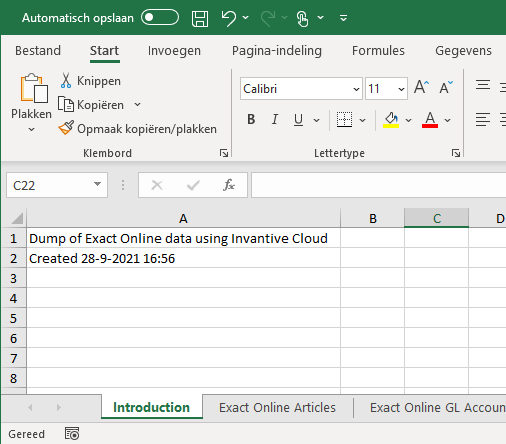
In this example we cover:
- registering an Exact Online database and an app,
- creating an Excel file within an app,
- adding worksheets with a custom name,
- filling specific cells with a value such as “Dump of Exact Online…”,
- filling worksheets with an SQL query.
Are you looking for an example for a CSV file, or export in JSON or XML format, or a solution with Power Pivot or Power Query? The following articles will help you get started:
- JSON genereren vanuit Invantive UniversalSQL
- Laad Exact Online in Qlik Sense en Tableau
- Ophalen in CSV van RIVM Covid-19 Gegevens
- Export all Outstanding Items (AP and AR) from Exact Online Companies
- Exporteer Exact Online Stukslijsten naar Excel
- Binnenhalen artikelvoorraden in Excel Power Query
- Verbind Power Query met Exact Online
Preparations
The following preparations are required:
- A sign-in code for Invantive Cloud.
- A sign-in code for Exact Online with one or more administrations.
Defining an Exact Online Database
The first step is to define an Exact Online database. This can be done very easily by following this step-by-step plan:
You can use this Exact Online database for Power BI, Power Query or Azure Data Factory, but just as easily for, say, Access OData or as a source for an Invantive Cloud application.
Defining a Cloud Application
The next step is to define an app on Invantive Cloud. Carry out the following steps:
- Select ‘Applications’ from the menu:
- Choose ‘New’.
- Fill in the fields as follows:
- Choose ‘Modules’.
- Choose ‘New’.
- Fill in the fields as follows:


Creating and Filling the Excel File
This module will contain the code to create the Excel file.
The full code is given at the end of this article.
Want to get started quickly?
- Paste the code into the module in the “Source code” field.
- Choose “My First App” in the breadcrumb trail at the top.
- Choose “Run”.
- Choose your Exact Online database.
- Choose “Run”:
- Choose the module:
- The Excel file will be downloaded.


For large downloads taking longer than 3 minutes, you will need to start the module via Invantive App Online. With Invantive App Online it is also possible to run the module with IP address validation and username/password, or to place the module behind a CDN.
But what does the code actually do? The code is written in the Invantive PSQL language, which is the procedural extension of Invantive SQL.
Declare
The declare block defines three variables:
declare
  l_workbook  excel_workbook;
  l_worksheet excel_worksheet;
  l_binary    blob;
Of these variables, two have a data type that can only be used in PSQL:
excel_workbookexcel_worksheet
An excel_workbook contains a complete Excel workbook. Each workbook consists of one or more worksheets, represented by excel_worksheet.
The blob data type is used to store the assembled (binary) Excel file.
Excel Workbook and Cover Sheet
The first step is to define an Excel workbook. This is done through calls to a so-called “package”: a bundle of functions. You can read more about this at A short overview of Invantive PSQL packages.
  --
  -- Create an Excel workbook.
  --
  l_workbook := excel.new();
The workbook is still empty. A worksheet titled “Introduction” is added by calling the function add_worksheet in the excel package:
  --
  -- Add a worksheet with a title.
  --
  l_worksheet := excel.add_worksheet
  ( l_workbook
  , 'Introduction'
  );
Next, two cells are filled with some information using the function set_cell_contents:
  excel.set_cell_contents(l_worksheet, 'A1', 'Dump of Exact Online data using Invantive Cloud');
  excel.set_cell_contents(l_worksheet, 'A2', 'Created ' || to_char(sysdate));
Filling the Excel Worksheet with a Query
Of course, data from an SQL query on the Exact Online database can be placed into an Excel worksheet one by one using set_cell_contents within a for r in (query) loop...end loop.
But it is quicker and easier to use the fill_using_query function, which fills and formats a worksheet in one go with the results of an Invantive SQL query.
There are several ways to get data from an Exact Online administration into Excel. The first example uses a temporary table, which is filled with a query:
  --
  -- Add a worksheet for Exact Online articles.
  --
  l_worksheet := excel.add_worksheet
  ( l_workbook
  , 'Exact Online Articles'
  );
  --
  -- Create a list of articles consisting of code, description and EAN.
  --
  create or replace table itm@inmemorystorage
  as
  select itm.code
  ,      itm.description
  ,      itm.barcode
  from   ItemsIncremental@eol itm
  order
  by     itm.code
  ;
  --
  -- Place the items in the Excel worksheet.
  --
  excel.fill_using_query(l_worksheet, 'select * from itm@inmemorystorage');
This approach has the advantage that creating and filling the temporary table can be isolated in a separate module or PSQL function. It is also possible to pass a complete Exact Online query directly to fill_using_query, as shown here with general ledger accounts:
  --
  -- Add a worksheet for Exact Online General Ledger Accounts.
  --
  l_worksheet := excel.add_worksheet
  ( l_workbook
  , 'Exact Online GL Accounts'
  );
  --
  -- Place the General Ledger accounts in the Excel worksheet.
  --
  -- Instead of using a temporary table, this approach uses a direct query to fill
  -- the Excel worksheet.
  --
  excel.fill_using_query
  ( l_worksheet
  , 'select gat.code, gat.description'
    || ' from GLAccountsIncremental@eol gat'
    || ' order by gat.code'
  );
Converting to an XLSX File
The variable l_workbook now contains three worksheets. The following code converts it into an XLSX file for Excel by calling export_to_xlsx. The binary content is then returned to the browser via the cloud_http package:
  --
  -- Retrieve the resulting XLSX-file.
  --
  l_binary := excel.export_to_xlsx(l_workbook);
  --
  -- Return the XLSX file to the user.
  --
  cloud_http.set_response_body_binary(l_binary);
  cloud_http.set_response_content_type('application/vnd.openxmlformats-officedocument.spreadsheetml.sheet');
  cloud_http.set_response_header_value('Content-Disposition', 'attachment; filename="items.xlsx"');
end;
Full PSQL Code for the Exact Online Exporter to Excel
declare
  l_workbook  excel_workbook;
  l_worksheet excel_worksheet;
  l_binary    blob;
begin
  --
  -- Create an Excel workbook.
  --
  l_workbook := excel.new();
  --
  -- Add a worksheet with a title.
  --
  l_worksheet := excel.add_worksheet
  ( l_workbook
  , 'Introduction'
  );
  excel.set_cell_contents(l_worksheet, 'A1', 'Dump of Exact Online data using Invantive Cloud');
  excel.set_cell_contents(l_worksheet, 'A2', 'Created ' || to_char(sysdate));
  --
  -- Add a worksheet for Exact Online articles.
  --
  l_worksheet := excel.add_worksheet
  ( l_workbook
  , 'Exact Online Articles'
  );
  --
  -- Create a list of articles consisting of code, description and EAN.
  --
  create or replace table itm@inmemorystorage
  as
  select itm.code
  ,      itm.description
  ,      itm.barcode
  from   ItemsIncremental@eol itm
  order
  by     itm.code
  ;
  --
  -- Place the items in the Excel worksheet.
  --
  excel.fill_using_query(l_worksheet, 'select * from itm@inmemorystorage');
  --
  -- Add a worksheet for Exact Online General Ledger Accounts.
  --
  l_worksheet := excel.add_worksheet
  ( l_workbook
  , 'Exact Online GL Accounts'
  );
  --
  -- Place the General Ledger accounts in the Excel worksheet.
  --
  -- Instead of using a temporary table, this approach uses a direct query to fill
  -- the Excel worksheet.
  --
  excel.fill_using_query
  ( l_worksheet
  , 'select gat.code, gat.description'
    || ' from GLAccountsIncremental@eol gat'
    || ' order by gat.code'
  );
  --
  -- Retrieve the resulting XLSX-file.
  --
  l_binary := excel.export_to_xlsx(l_workbook);
  --
  -- Return the XLSX file to the user.
  --
  cloud_http.set_response_body_binary(l_binary);
  cloud_http.set_response_content_type('application/vnd.openxmlformats-officedocument.spreadsheetml.sheet');
  cloud_http.set_response_header_value('Content-Disposition', 'attachment; filename="items.xlsx"');
end;