Supplementary Information
Is it possible to add a (anonymised) screenshot of the request details in Online Monitoring on Invantive Cloud as described at Meer inzicht met nieuwe Online Monitoring?
You will find the details by clicking on the download request that is the subject of this topic.
The download request usually contains an SQL statement in which the table name is visible.
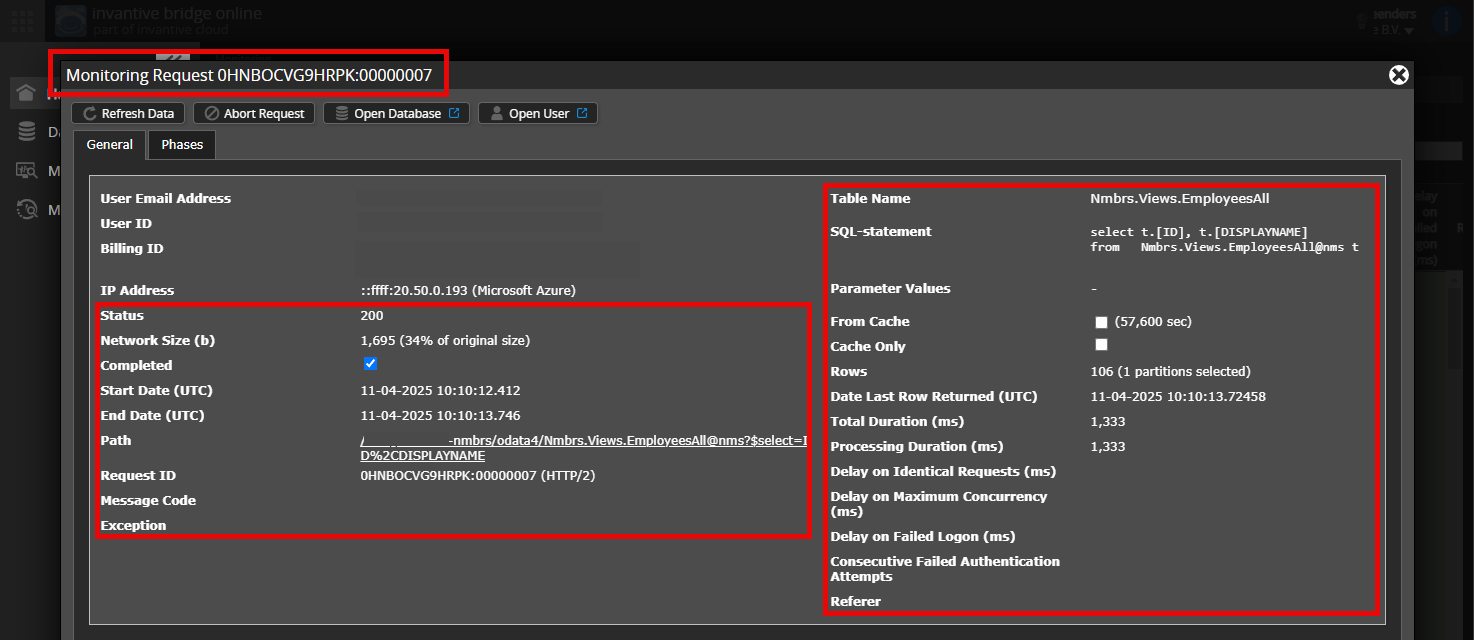
Please ensure that at least the following details are visible from both columns:
- the title bar with the request ID,
- the status code, network size, path and times in the left-hand column,
- the error code and error message at the very bottom of the left-hand column,
- the entire right-hand column including the SQL statement, table name and parameter values.
For example:
Check Correct Server and User
Carefully check that you log in to the Invantive Cloud website with the same username you use for processing data through, for example, Invantive Bridge Online. You will only see the requests from the Invantive Cloud user with whom you log into the website.
Check Correct Request and Details
Ensure that you first select the request to display the details. There should only be one request visible in the screenshot.
Also, carefully check whether the request has a path with odata4, apps or mcp. Requests with other paths are generally not relevant for this purpose.
Error Message and Tips via Email
In addition, the Invantive Cloud user who received the error message will usually receive an email to their email address with an error message and tips if there is an error message in Power BI, Power Query, Azure Data Factory, Qlik or Tableau.
Recommended to check the spam of the involved user for such emails sent from support@invantive.eu.