Storing ExactOnlineXML.XML.APOutstandingItems@eol

I have a Power BI connection with Exact Online via Invantive Cloud.

This has been running for over a year without issues.

Since last Sunday, I am experiencing an error with 1 table:

ExactOnlineXML.XML.APOutstandingItems@eol

Instead of the normal columns, I receive two itgenboe columns with error messages in return. Other tables load as normal.

Is this known? Do I need to adjust something?

The first column is error_itgenboe054, the second itgenboe012.

Additional information

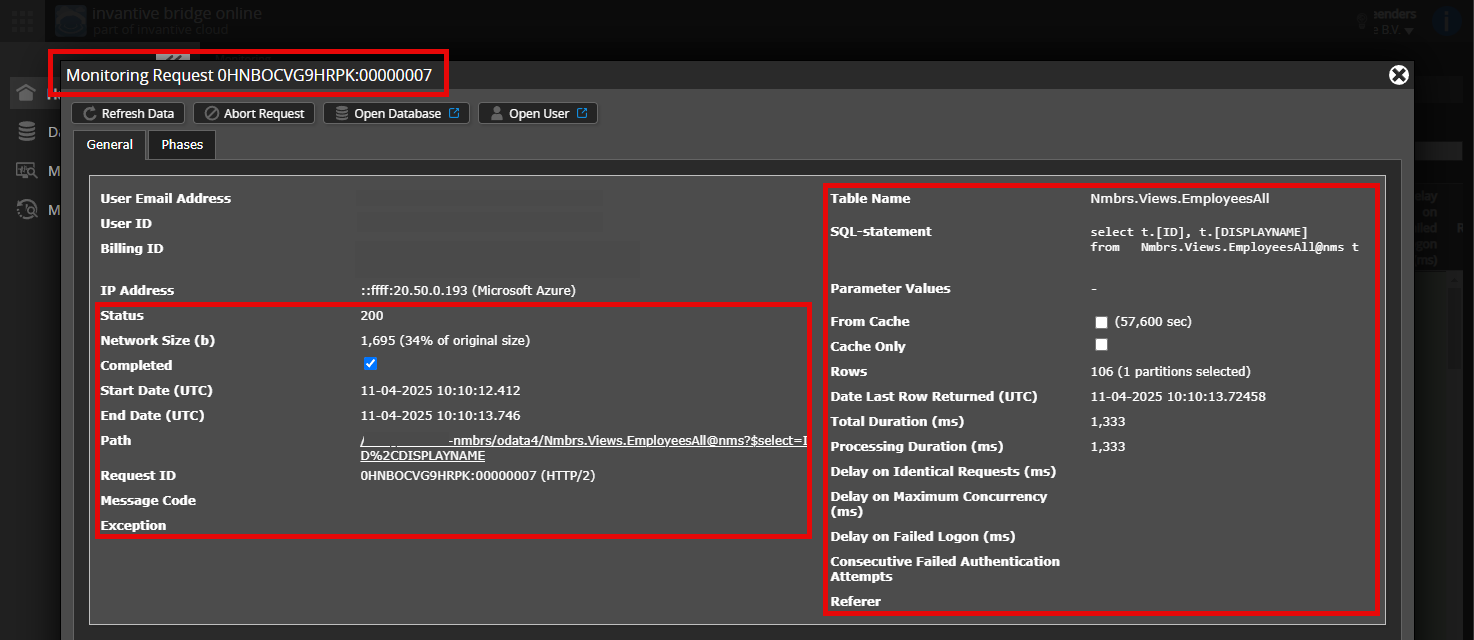
Is it possible to add a (anonymised) screenshot of the details of the request in Invantive Bridge Online Monitoring as described in Meer inzicht met nieuwe Online Monitoring?

You can find the details by clicking on the download request which represents the subject of this topic.

The download request usually has an SQL statement in which the table name is visible.

Please keep at least the following information visible in both columns:

  • the title bar with the request ID,
  • the status code, network size, path and timestamps in the left-hand column,
  • the error code and error message right at the bottom of the left-hand column,
  • the entire right-hand column including the SQL statement, table name and parameter values.

For example:

Check the correct server and user

Please carefully check that you are logging in on the Bridge Online website that is also used from Power BI, and with the same username. You will only see the requests of the Invantive Cloud user with which you log in on the website.

Four servers are in use:

  • bridge-online.cloud
  • app-online.cloud
  • bridge-online.invantive.com
  • app-online.invantive.com

You can find the server being used in your script or the source code of the report.

Check the correct request and details

Make sure you first select the request so that the details are displayed. Only one request should be visible in the screenshot.

Also carefully check whether the request has a path with odata4 or apps. Requests with other paths are generally not relevant for this purpose.

Error message and tips by email

In addition, if there is an error message in Power BI, Power Query, Azure Data Factory, Qlik or Tableau, the Invantive Cloud user who received the error message will usually also receive an email to their email address containing an error message and tips.

We advise checking the spam folder of the user concerned for such emails sent from support@invantive.com.

The above has not yet been found. I am connecting via a data flow, which has been working well for over a year. Other tables are coming in just fine. Only this specific one is not. Perhaps this screenshot will help. I receive 18 rows in return.

Invantive_01

Invantive02

There are more tables with the term “Outstanding” with errors, but I do not use them.

Green is OK, red is error message.

Update: Since last Sunday, the refresh has been working well again. It didn’t work for exactly a week. It seems that “something” is reloaded again after a week. How can I resolve this more quickly in the future instead of waiting a week?

Without knowing the cause, no advice can be given here.

There is a long-standing known bug in Exact Online relating to open items, whereby, depending on the open items, in roughly 1 in perhaps five to ten thousand situations the Exact Online API server crashes with an error message depending on the open items. It is possible that these open items have since been settled and Exact Online no longer crashes?

For absolute certainty, it is advisable to always add the error message from Invantive itself, as Microsoft products usually replace the actual error message with something meaningless. To do this, please follow the instructions below:

Instructions for Next Time

Additional information

Is it possible to add a (anonymised) screenshot of the details of the request in Invantive Bridge Online Monitoring, as described at Meer inzicht met nieuwe Online Monitoring?

You can find the details by clicking on the download request which represents the subject of this topic.

The download request usually has an SQL statement in which the table name is visible.

Please ensure that at least the following information remains visible in both columns:

  • the title bar with the request ID,
  • the status code, network size, path and timestamps in the left-hand column,
  • the error code and error message right at the bottom of the left-hand column,
  • the entire right-hand column including the SQL statement, table name and parameter values.

For example:

Check the correct server and user

Please check carefully that you are logging in to the Bridge Online website that is also used from Power BI, and with the same username. You will only see the requests of the Invantive Cloud user with which you log in to the website.

There are four servers in use:

  • bridge-online.cloud
  • app-online.cloud
  • bridge-online.invantive.com
  • app-online.invantive.com

The server being used can be seen in your script or report source code.

Check the correct request and details

Make sure you first select the request to display the details. Only one request should be visible in the screenshot.

Also check carefully that the request has a path with odata4 or apps. Requests with other paths are generally not relevant for this purpose.

Error message and tips by email

In addition, if there is an error message in Power BI, Power Query, Azure Data Factory, Qlik or Tableau, the Invantive Cloud user who received the error message will usually receive an email at their email address containing an error message and tips.

It is advisable to check the spam folder of the user concerned for such emails sent from support@invantive.com.
Background

The occurrence of the value error_itgenboe054 indicates that registering a table failed. The cause is characterised by the name of the second column (here named itgenboe012).

The full details can be found by searching for itgenboe054 in the “System Messages” screen. However, Invantive has not been able to find such a message with this code concerning an Exact Online table.

This question has been automatically closed after 1 week of inactivity. The last provided answer has been marked as the solution.

Please post a new question in a separate topic if the issue occurs again. In the new question, please include a link to this topic by pasting its URL into the text.