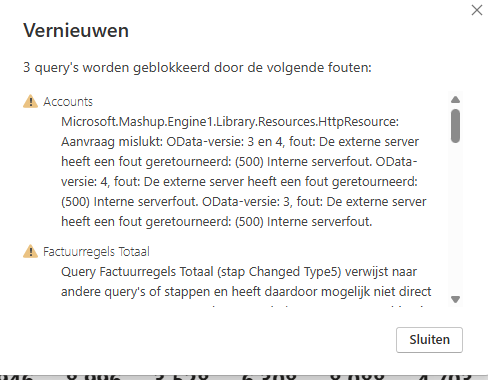
Bij vernieuwen krijgen we onderstaande een foutmelding
Aanvullen informatie
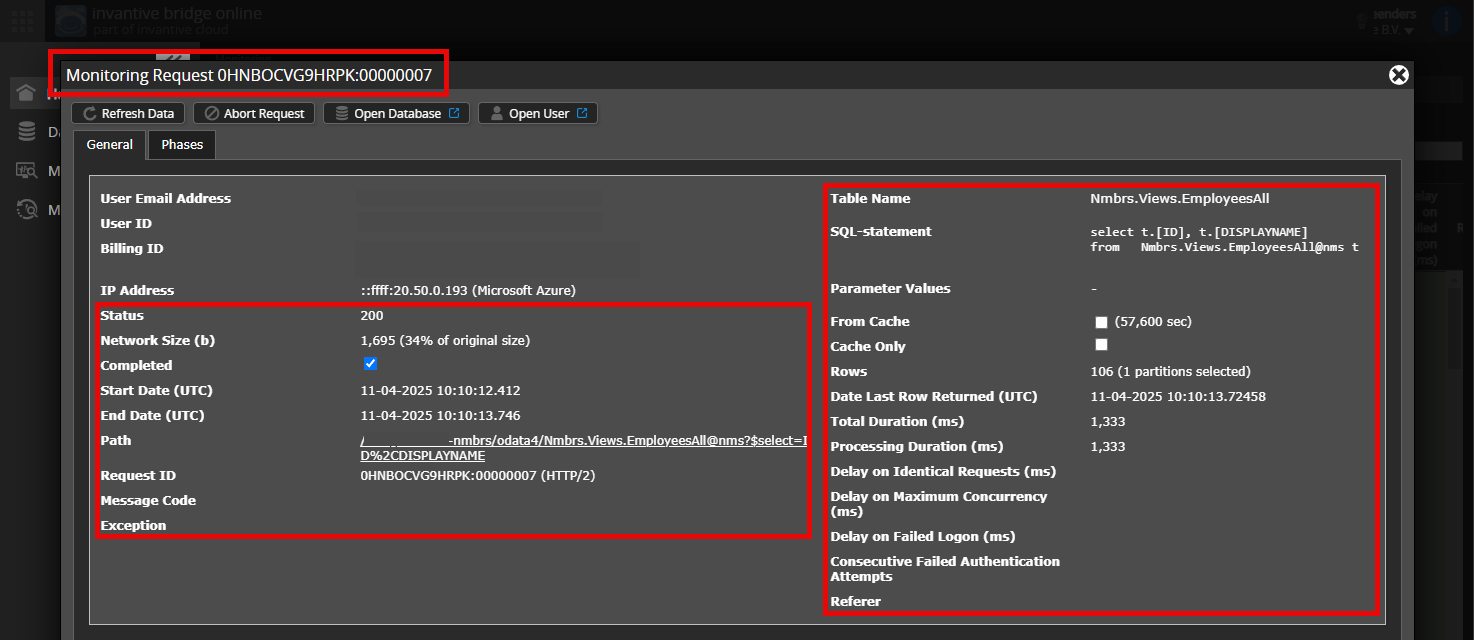
Is het mogelijk om een (geanonimiseerde) schermafdruk van de details van het verzoek in Invantive Bridge Online Monitoring toe te voegen zoals beschreven in Meer inzicht met nieuwe Bridge Online Monitoring?
De details vindt u door te klikken op het downloadverzoek welke het onderwerp van dit onderwerp representeert.
Het downloadverzoek heeft meestal een SQL-statement waarin de tabelnaam zichtbaar is.
Gelieve tenminste de volgende gegevens zichtbaar te laten van beide kolommen:
- de titelbalk met de request ID,
- de statuscode, netwerkgrootte, pad en tijdstippen in de linkerkolom,
- de foutcode en foutmelding helemaal onderaan in de linkerkolom,
- de gehele rechterkolom inclusief het SQL statement, tabelnaam en parameterwaardes.
Bijvoorbeeld:
Controleer juiste server en gebruiker
Controleer zorgvuldig dat u zich aanmeldt op de Bridge Online-website die ook gebruikt wordt vanuit Power BI en met dezelfde gebruikersnaam. U ziet alleen de verzoeken van de Invantive Cloud-gebruiker waarmee u zich aanmeldt op de website.
Er zijn vier servers in gebruik:
bridge-online.cloudapp-online.cloudbridge-online.invantive.comapp-online.invantive.com
De gebruikte server ziet u in uw script of broncode van rapportage.
Controleer juiste aanvraag en details
Zorg ervoor dat u het verzoek eerst selecteert om de details weer te geven. Er hoort maar één verzoek zichtbaar zijn in de schermafbeelding.
Controleer ook zorgvuldig of het verzoek een pad heeft met odata4 of apps. Verzoeken met andere paden zijn over het algemeen niet relevant voor dit doel.
Foutmelding en tips per e-mail
Daarnaast zal de Invantive Cloud-gebruiker die de foutmelding heeft op zijn e-mailadres veelal een e-mail ontvangen met een foutmelding en tips als er sprake is van een foutmelding in Power BI, Power Query, Azure Data Factory, Qlik of Tableau.
Advies is om de spam van de betrokken gebruiker te controleren op dergelijke e-mails verzonden vanaf support@invantive.com.
Deze pbix heeft altijd goed gedraaid. Ik krijg nu al een foutmelding bij bijvoorbeeld het ophalen van het artikelassortiment:
let
Source = OData.Feed(“https://bridge-online.invantive.com/acme-exact-online/odata4”, null, \[Implementation=“2.0”\]),
#“ExactOnlineREST.Logistics.ItemAssortmentProperties@eol_table” = Source{\[Name=“ExactOnlineREST.Logistics.ItemAssortmentProperties@eol”,Signature=“table”\]}\[Data\]
in
#“ExactOnlineREST.Logistics.ItemAssortmentProperties@eol_table”
Advies is om de bovengevraagde informatie toe te voegen. Mogelijkerwijs dat de tips die hier bij kunnen verschijnen al een aanknopingspunt bieden.
Deze vraag is automatisch gesloten na 1 week inactiviteit. Het laatste gegeven antwoord is gemarkeerd als oplossing.
Gelieve een nieuwe vraag te stellen via een apart topic als het probleem opnieuw optreedt. Gelieve in de nieuwe vraag een link naar dit topic op te nemen door de URL er van in de tekst te plakken.