In this topic, you can find out how to resolve an unexpected #N/A (English, ‘no value is available’) error from an [Invantive Excel formula](https://forums. invantive.com/t/the-most-popular-exact-online-excel-add-in-formulas/2071). If you still get a #N/A as the value from an Invantive Excel formula after reading through and trying out the tips, please leave a reply detailing the steps you took, starting from a blank Excel workbook, to reproduce the error.
#N/A as Excel formula results
The value #N/A indicates that the Invantive Excel formula cannot be calculated and is often interpreted as an error. Unfortunately, this value can have many different causes. The following steps will help you to resolve the issue.
Ensure that the formula and its components are correct
This step also applies to Excel if Invantive Control for Excel is not being used.
If an underlying Excel formula results in a #N/A error, then a formula that reuses the result will also display the same message. If cell A1 contains “#N/A” or “=NA()”, then the formula “=2*A1” will also result in #N/A.
You should therefore simplify the Excel formula that returns #N/A as much as possible, whilst ensuring that the result remains #N/A. If you need to use underlying Excel formulas, place each formula in a separate cell and use a cell reference in your Excel formula. If such a separate cell displays #N/A, resolve the issues in the underlying formulas first.
Use the ‘NA()’ formula or the conditional formula ‘IF.NA()’ to convert #N/A to the desired results, should #N/A be a valid result in the underlying formulas, in the sense of ‘No data’.
Using Invantive Excel formulas
This step only applies when using Invantive Control for Excel.
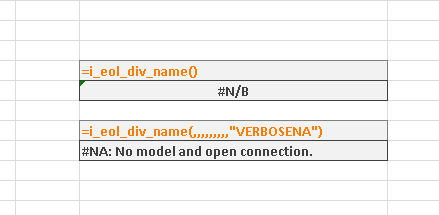
If an Invantive Excel formula returns #N/B or #N/A, include the hint “VERBOSENA” in the formula. The cause will then be displayed as the result. In the image below, the top formula returns #N/A because the Control model is not present. The bottom formula uses “VERBOSENA” to identify the cause. The formula’s result (in English) then explains the cause: “#NA: No model and open connection.”
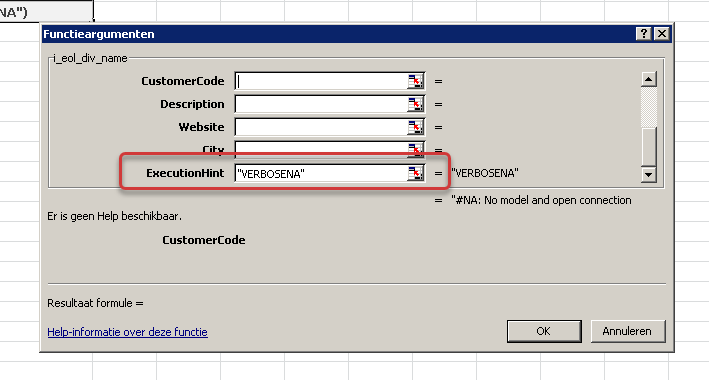
The hint is added using the ‘ExecutionHint’ parameter, which is available in virtually all Invantive Control Excel formulas:
A complete overview of the available hints is available in Execution hints of Invantive Control Excel-formulas.
Retrieving information retrospectively via UDFMeasurements
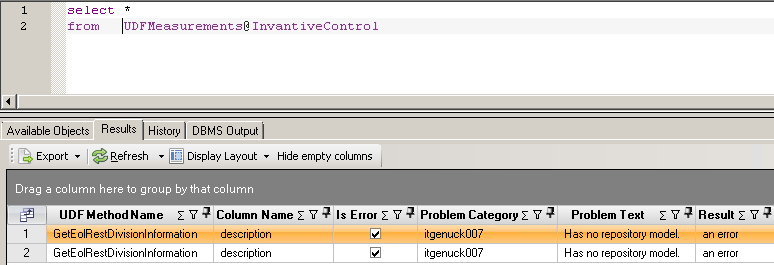
From BETA release 22.1.35 onwards, it is also possible to retrieve the reason(s) for #N/A notifications retrospectively by consulting the UDFMeasurements@InvantiveControl view. This can be done in two ways:
- Via a query
- Via Data Analysis
To retrieve UDFMeasurements@InvantiveControl, use the built-in Query Tool in Invantive Control for Excel:
Use the building blocks to view UDFMeasurements@InvantiveControl via Data Analysis. To do this, select the menu option shown:
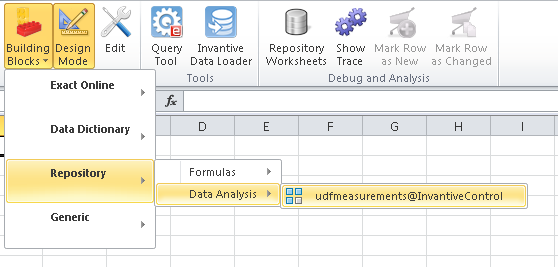
The result is then downloaded using the familiar Data Analysis method from the cell where the cursor is positioned, resulting in:

Check that the Control model is enabled
This step only applies when using Invantive Control for Excel.
Invantive Excel formulas return the error #N/A because the model is not enabled.
In the “Modeller” ribbon, check that the toggle switch is set to the right and is green:
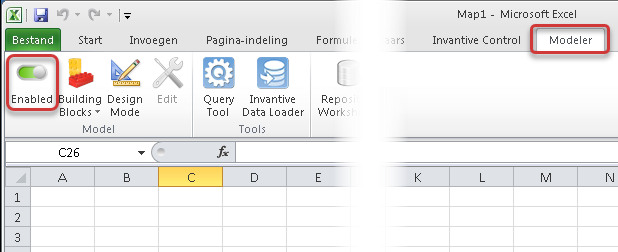
Enable the model if it was not active by clicking the slider.
What is somewhat confusing is that Invantive continues to display results from Excel formulas that have already been calculated and stored, even when the model is disabled. The reuse of previous results therefore works even when the model is disabled. To be on the safe side, log out and log back in, which will clear the cache of previous results and recalculate all formulas.
Check that the correct partition/account has been selected
This step only applies when using Invantive Control for Excel.
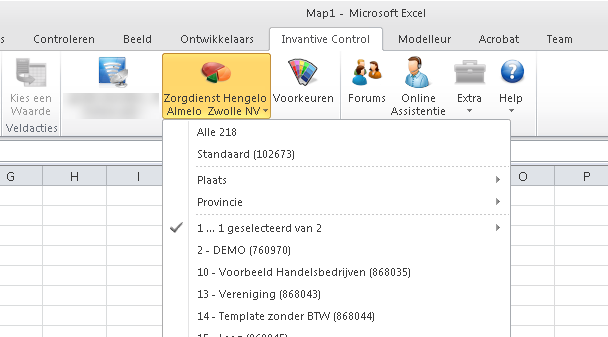
Invantive Excel formulas return the error #N/A because the Excel formula (as in Exact Online) requests a value from a partition/account that is not included in the selected list.
Usually, the partition/account is the first argument of the Excel formula. If the first argument is not specified but a partition/account is expected, Invantive Control for Excel will check whether exactly one partition/account has been selected. That partition/account will then be used.
In the “Invantive Control” ribbon, select the desired partition/account or all of them:
Check Excel XLAM file containing Invantive formulas / use SharePoint
This step only applies when using Invantive Control for Excel.
Invantive Control for Excel uses an Excel XLAM file to make new Excel formulas available. This file, with the extension ‘*.xlam’, is located in the profile of the user who last used and saved the file.
Please note that Invantive Control for Excel consists of two add-ins. In addition to the XLAM file, the other is “Invantive Control for Excel” (filename Invantive.Excel.Starter.vsto).
The use of Invantive Control for Excel in combination with a direct SharePoint link is strongly discouraged, as this causes problems with many add-ins and requires less common IT knowledge on the part of system administrators to configure it correctly. We recommend working with the traditional folder structure, which may be linked to SharePoint as central storage.
When used in conjunction with SharePoint, an error such as the following may occur:
We are unable to connect to https://ACME.sharepoint.com/Users/john/AppData/Roaming/Microsoft/AddIns/Invantive Control functions.xlam. Please check that you are using the correct web address.
Followed by the error message:
Microsoft Excel is unable to access the file https://acme.sharepoint.com/Users/john/AppData/Roaming/Microsoft/AddIns/Invantive Control functions.xlam. There are several possible causes:
- The file name or path does not exist.
- The file is being used by another program.
- The workbook you are trying to save has the same name as a workbook that is already open.
And finally, the question:
Do you want to make this file a trusted document?
This file is located on a network drive. Other users with access to this network drive could modify the file without authorisation.
A workaround is to answer this question with ‘Yes’. Alternatively, the IT administrator could be asked to improve the network configuration in terms of authorisations.
Incorrect folder for Excel XLAM file results in #N/A
This step only applies when using Invantive Control for Excel.
Invantive Control for Excel uses an Excel XLAM file (extension “*.xlam”) that makes the new Excel functions available. This XLAM file is searched for in the user’s Windows profile. Failure to locate this file may result in errors such as #NAME, but can sometimes also lead to a #N/B error.
The Excel workbook contains the full path to the XLAM file being used in the links. This will vary for each user. If a user is working on a PC with a different location for the Windows profile, Invantive Control for Excel will automatically update the link.
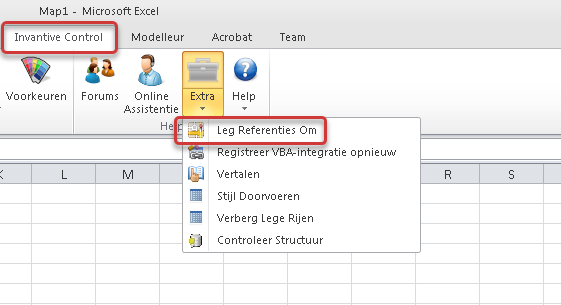
If a #N/A is displayed as the result of a formula, to be on the safe side, re-establish this link by selecting “Reset References” from the “Tools” menu in the “Invantive Control” ribbon:
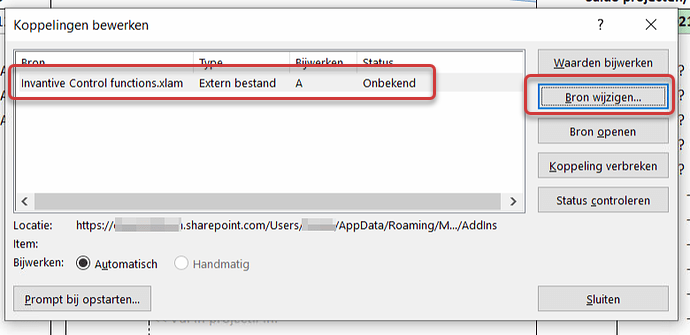
If the problem persists, please also check the links in the “Data” ribbon using the “Edit Links” option, just to be on the safe side:
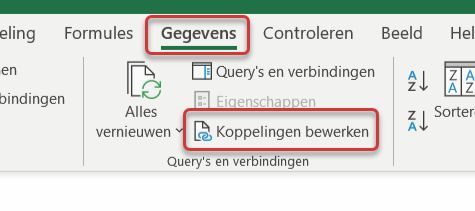
Use the buttons to select the correct XLAM file from %USERPROFILE%:
A different folder or network folder can be specified for “Invantive Control functions.xlam” by setting the desired folder in the environment variable INVANTIVE_CONTROL_XLAM_FOLDER. The Excel add-in combines the value of this variable with the filename to locate the VBA file.
Other
Sometimes the #N/A error can be explained by previous steps a user has taken, but it can still be difficult for the user to identify the cause.
The following steps therefore often resolve any remaining issues:
- Log in again using the login button in the “Invantive Control” ribbon.
- Force a recalculation by selecting “Recalculate All”. The corresponding keyboard shortcut is: CTRL + Alt + Shift + F9.