Fortnox has various strategies for 2FA, including one using SMS codes on every login.
The use of user, password and SMS for 2FA in lights-out environments with Data Hub is by design not feasible. There is no human present to read and enter a SMS code.
The following options are available:
- refresh token;
- via Invantive Cloud on OData (read-only);
- via Invantive Cloud on UniversalSQL Server (read and write).
Refresh token acquired via Invantive Cloud Pre-authentication
First option that springs into mind is to use pre-authentication on Invantive Cloud to get a refresh token for subsequent on-premises acquisition of the so-called “access tokens”. This refresh token can be included in the database settings as follows:
- Go to Invantive Cloud.
- Go to Setup menu.
- Go to Pre-authenticate.
- Go to Pre-authenticate for on-premises use.
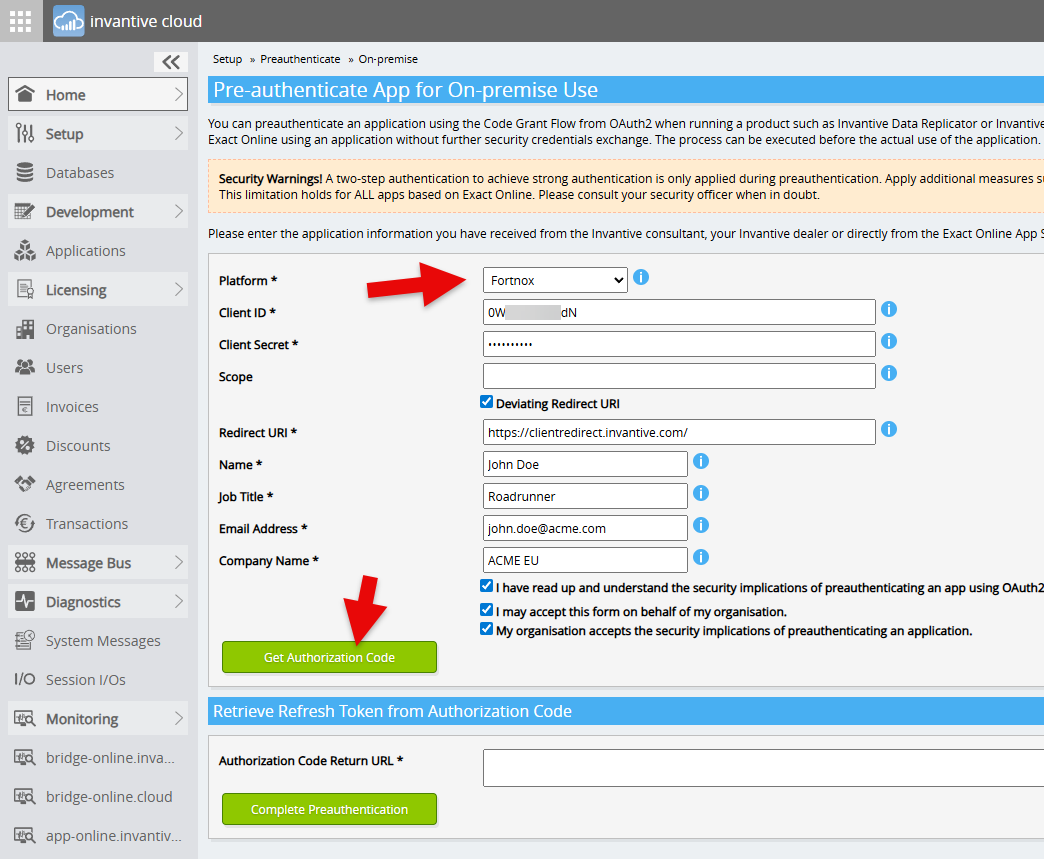
- Choose Fortnox.
- Specify client information as shown (put your own client ID, client secret and redirect URI in):
- Choose “Get Authorization Code”.
- Log on to Fortnox.
- Choose company.
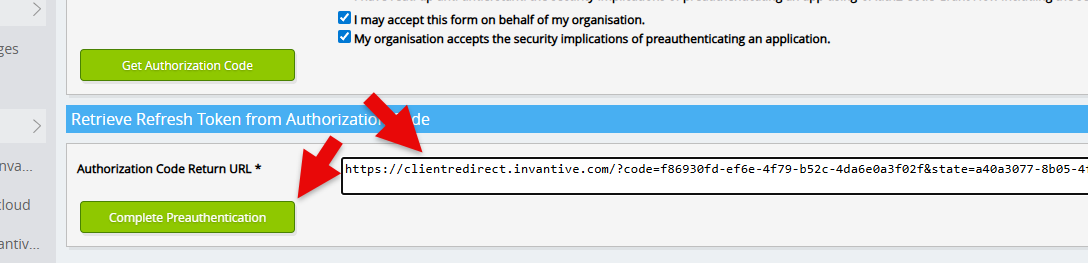
- Copy the full resulting URL to your clipboard.
- Paste the URL in the still op Pre-authenticatie window:
- Choose “Complete Preauthentication”.
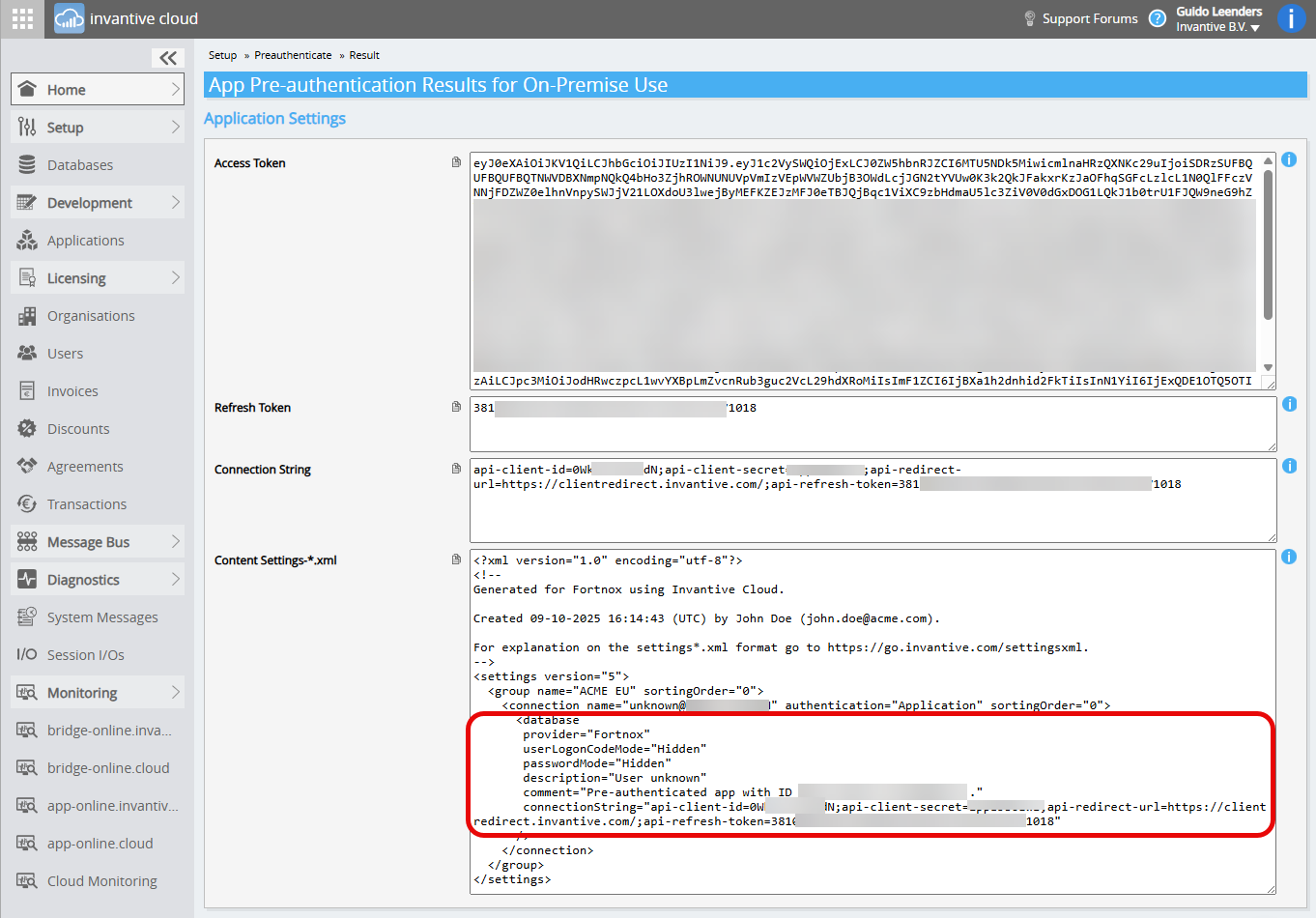
- The next page displays in various formats the information for a data container based on Fortnox using a refresh token instead of a user name and password:
- Include these in your database using
settings*.xml
It is unclear whether this token will continue to be active even when consistently used after 45 days. Feedback is welcome!
Via Invantive Cloud using OData (read-only)
As an alternative, register a Fortnox-database on Invantive Cloud:
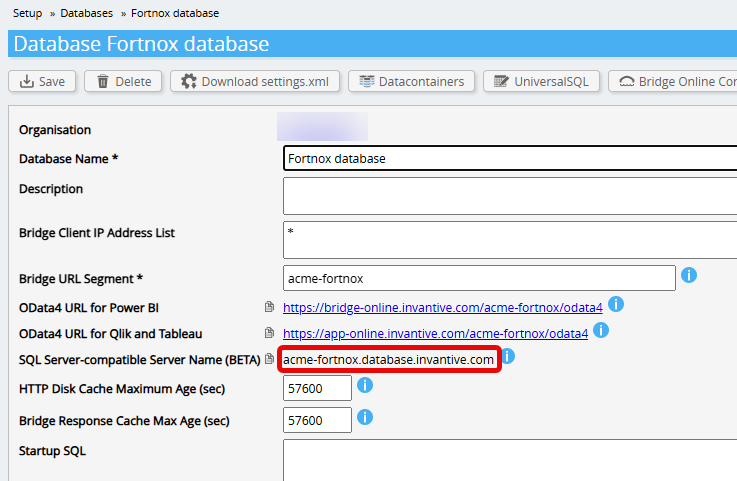
Make sure the external IP address of the Data Hub server is whitelisted on the database in the field “Bridge Client IP Address List” or use “*” as shown in picture.
Test the settings using the Invantive Bridge Online driver in the group Various as shown:
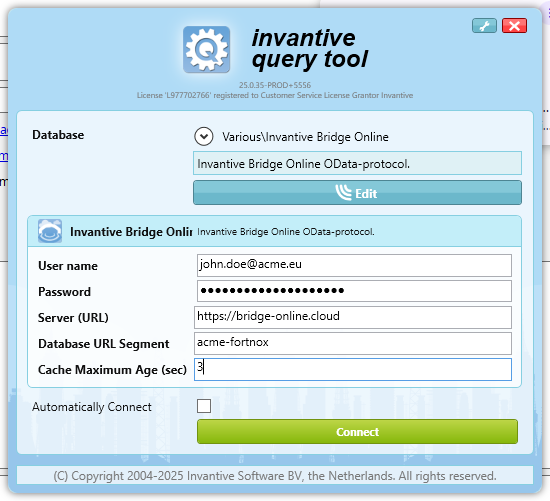
For instance using the Bridge Online query:
select *
from   [Accounts@fnx]
Next use the Bridge URL segment with the Invantive Bridge Online driver in a new data container in your database settings*.xml, such as:
  <database
   order="30"
   alias="fortnox"
   provider="InvantiveBridgeOnline"
   userLogonCodeMode="Hidden"
   passwordMode="Hidden"
   defaultUserLogonCode="john.doe@acme.eu"
   defaultPassword="secret"
   connectionString="server=https://bridge-online.invantive.com;database=acme-fortnox"
  />
Replace the defaultUserLogonCode and defaultPassword value by an Invantive Cloud user and password.
The OData protocol allows only reading data.
Via Invantive Cloud using SQL Server (BETA as of October 2025) for read and write
As an alternative you can register a Fortnox-database on Invantive Cloud:
Make sure the external IP address of the Data Hub server is whitelisted on the database in the field “Bridge Client IP Address List” or use “*” as shown in picture.
Then use the host name provided by Invantive UniversalSQL Server as “SQL Server-compatible Server Name (BETA)” in a new data container in your database settings*.xml, such as:
  <database
   order="30"
   alias="fortnox"
   provider="SqlServer"
   userLogonCodeMode="Hidden"
   passwordMode="Hidden"
   connectionString="Data Source=acme-fortnox.database.invantive.com;UID=john.doe@acme.com;PWD=secret"
   AllowConnectionStringRewrite="false"
  />
Replace the UID and PWD value by an Invantive Cloud user and password.
The Invantive UniversalSQL Server protocol allows both reads and writes, but may require some renames of the object names, since all four levels of a name on Invantive UniversalSQL sometimes need to be mapped into the three level naming model of Microsoft SQL Server.
Sample
The following sample shows all three approaches combined in one database with three data containers in the login screen:
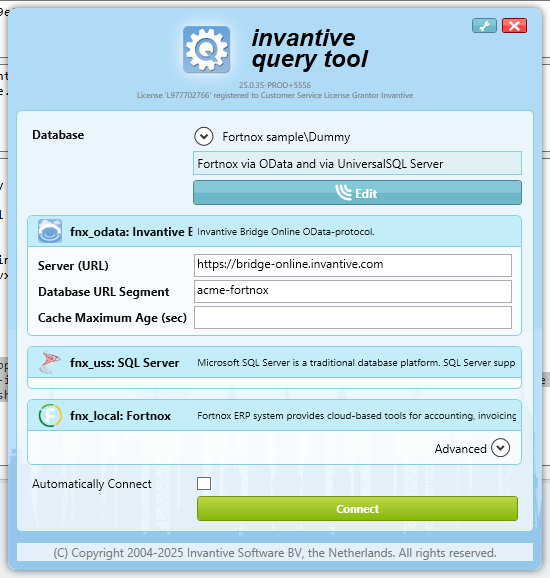
The query used is:
select 'OData'
,      *
from   Accounts@fnx_uss
where  number = 1010
union all
select 'UniversalSQL Server'
,      *
from   [Accounts@fnx]@fnx_odata
where  number = 1010
union all
select 'Local'
,      *
from   Accounts@fnx_local
where  number = 1010
with three identical results:
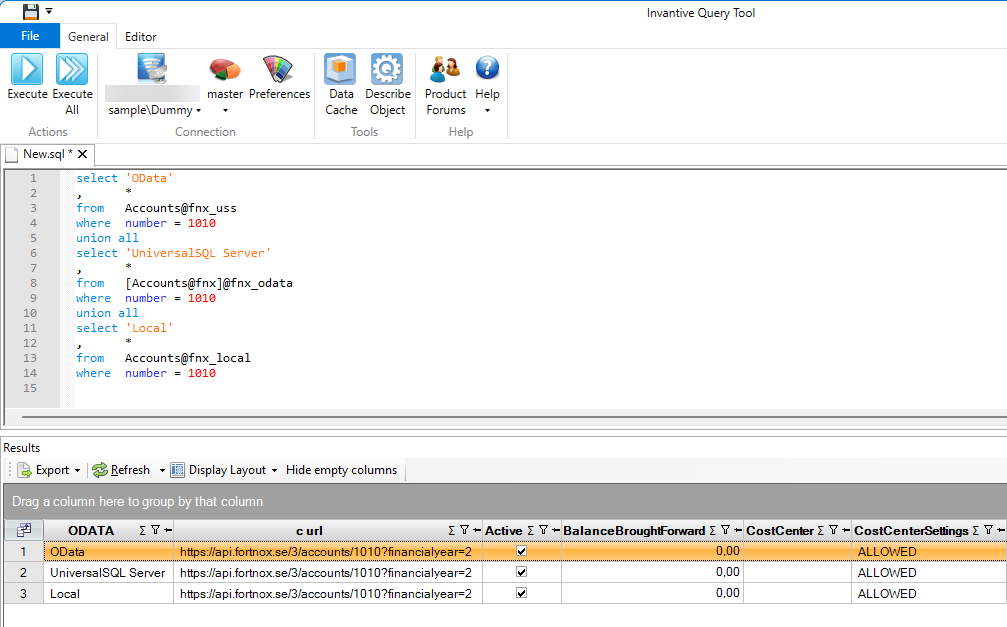
Please note that the refresh token is only used from the second log in onward.
Future
In a future release, Invantive might offer token acquisition from Invantive Cloud while all data exchange might still take place on the client running the on-premises tools.