Our Twinfield database connection only exposes the Dimensions datacontainer. How do I enable the Financial Statements / General Ledger / Transactions datacontainers so we can access P&L, Trial Balance, Ledger Balances and TransactionLines through the OData provider.
By default all tables are available on Twinfield. There is no way to restrict table access by default.
Can you be more specific what tables you are missing or include a sample of the error as shown below?
Complete information
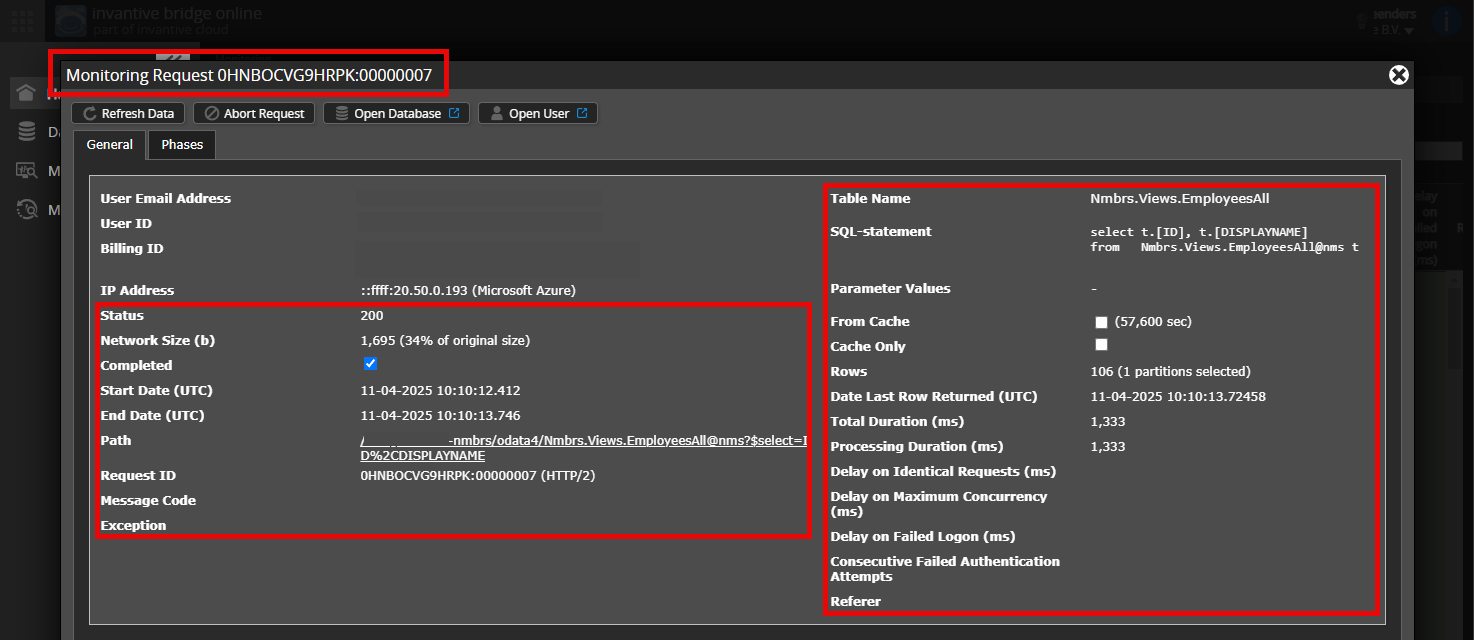
Is it possible to add a (anonymized) screenshot of the request details in Invantive Bridge Online Monitoring as described in More insight with new Bridge Online Monitoring?
Details can be found by clicking on the download request which represents the issue discussed in this topic.
The download request typically has a SQL-statement with table name visible.
Please leave at least the following data visible from both columns:
- the title bar with the request ID,
- the status code, network size, path and times in the left column,
- the error code and error message at the very bottom of the left column,
- the entire right column including the SQL statement, table name and parameter values.
For example:
Verify correct server and user
Check carefully that you are logging into the Bridge Online website that is also used from Power BI and with the same user name. You will only see the requests from the Invantive Cloud user you are logging into the website with.
There are four servers in use:
bridge-online.cloudapp-online.cloudbridge-online.invantive.comapp-online.invantive.com
You can see the server used in your script or source code of reporting.
Verify correct request and details
Please make sure to select the request to display the details. Only one single request should be visible in the screenshot.
Also check carefully that the request has a path with odata4 or apps. Other requests are in general non-relevant for this purpose.
Error message and tips per email
In addition, the Invantive Cloud user who has the error message will usually receive on his email address an email with an error message and tips if there is an error message in Power BI, Power Query, Azure Data Factory, Qlik or Tableau.
Advice is to check the affected user’s spam for such emails sent from support@invantive.com.
This question was automatically closed after at least 1 week of inactivity after a possible solution was provided. The last answer given has been marked as a solution.
Please ask a new question via a separate topic if the problem occurs again. Please include a link to this topic in the new question by pasting its URL into the text.